

Your self-service portal
In addition to approving timesheets and expenses, you have access to the following functions:
- View and print sales invoices or credit notes.
- Access to summary information of your contractors.
Accessing InTime
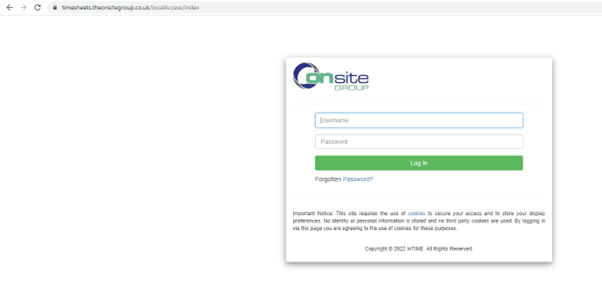
To get started with InTime, use the URL provided by OnSite. You will be prompted for your username and password, which will have been generated and sent to you directly from the InTime system.
Your Homepage
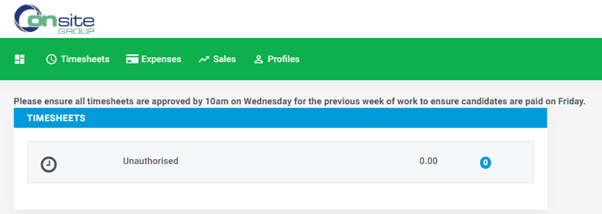
Once you have logged in, you will be presented with the main InTime homepage, with your dashboard.

The navigation menu is located across the top of the page.
The menu bar options will include the following
- A multi square icon – taking you back to your homepage.
- Timesheets – provides access to unauthorised, historic approved and rejected timesheets and a timesheet search function.
- Sales – provides ability to access invoices and credit notes.
In the top right hand corner of your screen
- Your name – Click on this, options appear for you to:
- Update your personal details.
- Change password.
- Exit InTime.
- Bell Symbol – Advises you of notifications.
- Help – takes you to our on line documentation help bank.
Your dashboard
On your main home screen, your personal dashboard will provide you with a real-time status of your current unauthorised timesheets and expenses.
Timesheet and expense basics
Statuses of timesheets explained:
Authorise: Timesheets displayed are awaiting authorisation.
Unauthorised: Timesheets displayed are awaiting authorisation but are viewable only on the dashboard.
Approved: An approved timesheet is one that you have approved for payment.
Rejected: A rejected timesheet or expense that has been rejected by you. You can provide a comment as to why the timesheet was rejected. Once rejected, the timesheet becomes a draft for editing and resubmitting by the contractor.
Approve or reject timesheets/expenses
To approve timesheets, go to Timesheet on the menu bar and click Authorise . You will then be presented with a list of all timesheets submitted by contractors that require approval. Alternatively you can use the dashboard on your homepage and select the appropriate item.
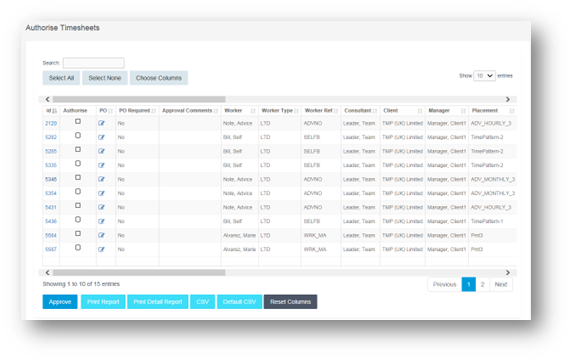
You can approve in one of two ways: Bulk approve: tick each item listed in the Authorise column that you want to approve, enter your password and then click Approve. Approve each timesheet individually by clicking on the timesheet ID. You will see a summary of the placement and the timesheet details.
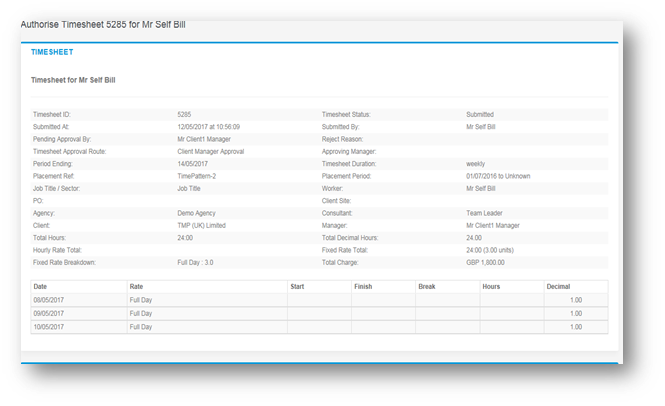
You must enter your password at the bottom of the screen and click either Approve or Reject. If you select Reject, you will be presented with a new page asking for a reason for the rejection. This reason will be sent back to the contractor so they can act accordingly.
Approved timesheets/expenses
Once you have approved these, they can be accessed by clicking Approved on the Timesheet or Expenses menu. Clicking on the id of the item will open it fully providing more detail.
Search
If you need to find a timesheet or expense item, you can select the Search feature from the Timesheet or Expense menu. Within this search form you can specify various dates, placements or timesheet criteria to find specific timesheet or expense items.
